User guide iPhone
Everything the app can do, part by part. Using Android? Choose the Android version below. The iPhone and Android apps now have the same screens. The screenshots show the Dutch version of the app.
This guide describes version 3.0, with League, the Coach card, the light appearance and the live score on your lock screen.
Home screen
Where it all starts
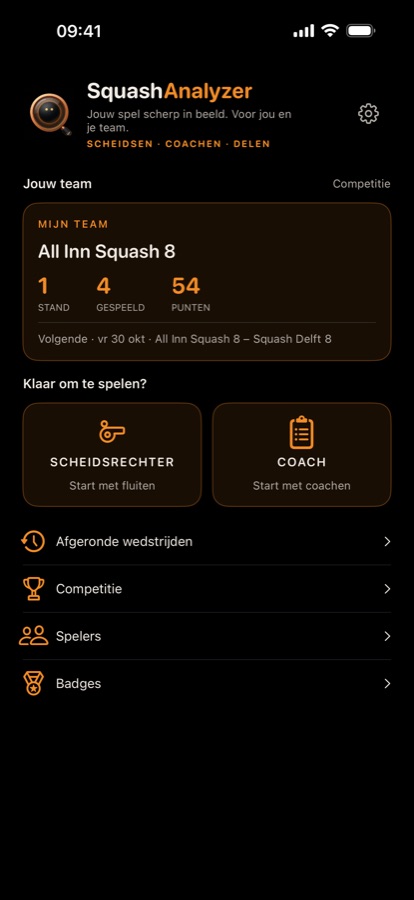
At the top it says Referee · Coach · Share: what the app is for. Below that you see My team once you have set a team link; without a team link you see the card Playing league at SBN? with Enter team link, Where do I find it? and Close. Under Ready to play? there are two tiles: Referee (the whistle) on the left and Coach (the clipboard) on the right. Below them are the rows Finished matches, League, Follow a match, Players and Badges. The gear at the top right opens Settings.
Tour
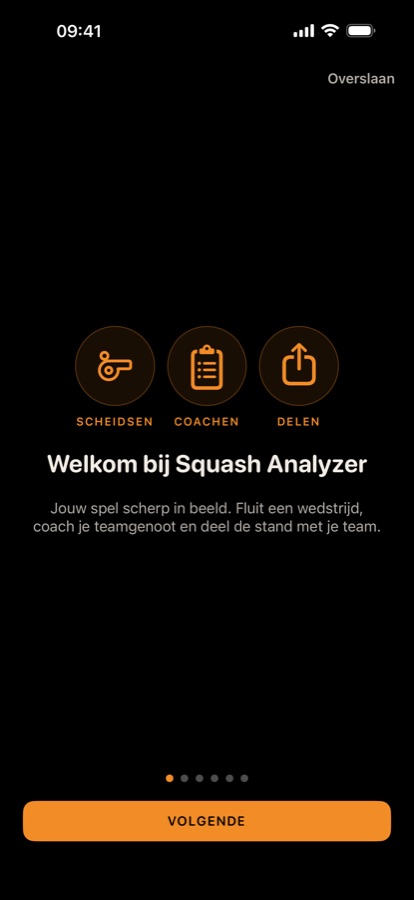
The first time you open the app, you get a short tour of six screens: welcome (Referee, Coach, Share), Referee, Coach, Choose player, League (with Enter team link) and Share (keeping teammates and supporters up to date, LIVE and the backup). Skip takes you straight to the home screen. Want to see it again later? Settings → About the app → View the tour again.
My team
The card above the tiles
Do you play league through sbn.toernooi.nl? Then you see your team's standings right on the home screen.
- Open Settings and paste the public team link (such as https://sbn.toernooi.nl/league/…/team/…) under My team.
- Tap Save team link. The card appears on the home screen.
The card shows your position, matches played, points and the next match with its date. Tap the card for the full overview: the pool standings, all matches with their results and the players in your team.
If fetching fails for a moment, you see the last standings fetched or a Retry button.
Where do I find my team link?
Under My team in Settings
The app needs your team's public page on sbn.toernooi.nl. Here is how to get it:
- Open sbn.toernooi.nl in the browser on your phone or computer.
- Find your league and your pool, and open the page of your own team (for example “All Inn Squash 8”).
- Copy the address from the address bar of that team page.
- Paste it in the app under Settings → My team and tap Save team link.
The right address starts with https://sbn.toernooi.nl/league/ and ends with /team/ and a number. If you only see the page of the whole pool or of your club, open your team first. The app tells you if the link is not right.
Stuck, or can't find your team page? Email us at info@squashanalyzer.com and we will help you find the link.
Once the link is saved, the players in your team appear automatically under Players, with the In my team tick.
Referee
Fast, official scoring, with the service rules
Starting
Just like Coach (below): names or Choose player, who serves first, Best of 1, 3 or 5, optionally Joining later?, and then Start referee.
Scoring
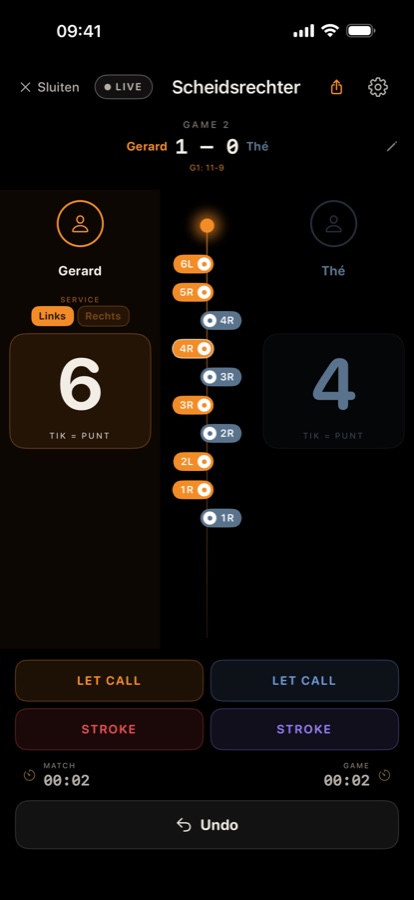
- Tap the big score (tap = point) of whoever wins the rally.
- The service box changes automatically. For the server you can adjust Left/Right; the app remembers this as that player's preference (handy for left-handers).
- In the middle is the score line: every rally with the new score and the box, for example 4R. A stroke has a white border.
- Let call and Stroke are below the scores for each player.
- At the bottom the match and game timers run, with Undo for the last point.
- Is a name wrong, or does it still say Player 1? Tap the names above the scores (with the pencil); the Edit names sheet opens. The score stays as it is and anyone watching live sees the new names at once. A player you picked with Choose player stays linked only as long as the name stays the same.
- The share icon at the top right shares the current score; with LIVE your team follows the score in the browser (see Coach).
- The gear at the top right opens Settings, just like in Coach and on the home screen.
Game and match over
After a game you see the score and duration, with Next game, Undo last point and View score. After View score you continue with the Next game button below the scores. After the match: the winner, badges earned, Share score and Close.
If you close halfway, the Referee tile later asks Resume match?. After resuming, Undo works again for the current game.
Coach
Record every rally: who scores, how, where and with which shot
Starting a match
Tap the Coach tile. If a match is still in progress, the app first asks Resume match?: Resume, New match (the old one goes to Finished matches as incomplete) or Cancel.
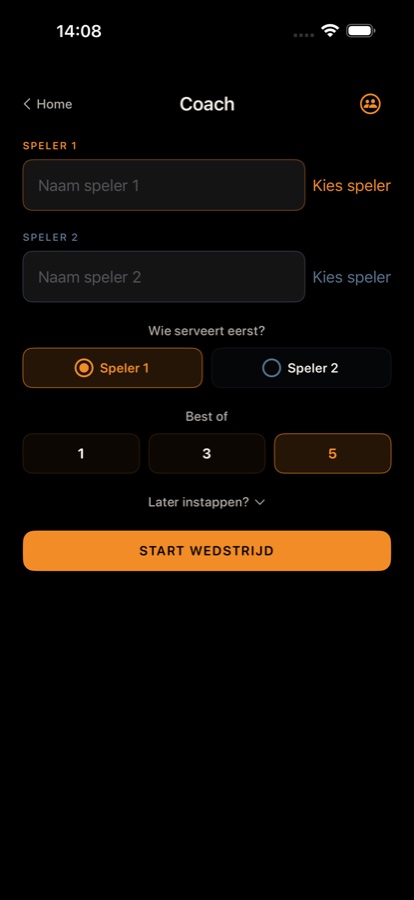
- Enter a name for Player 1 and Player 2, or tap Choose player to pick a saved player. Only chosen players can earn badges.
- Under Who serves first?, choose the server.
- Choose Best of 1, 3 or 5 games (5 by default). Handy in training: with best of 3 the match is over after two games won and it goes into the history as finished. A rubber of a team match is always best of 5.
- Joining later? Open Joining later? and enter how many games each player has already won.
- Tap Start match. Play continues until someone wins three games (best of 5).
- At the first serve, tap START GAME: from then on the rally timer runs, so the warm-up and the break between games are not counted.
Entering a point
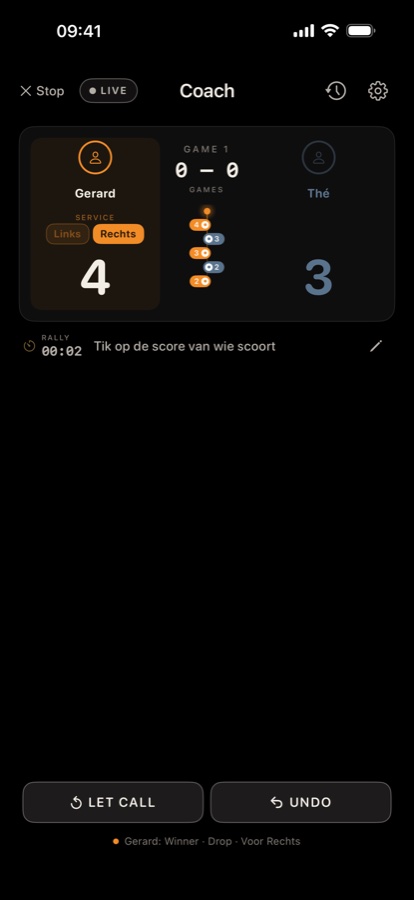
- Tap the score of the player who wins the point. (Tapping again cancels.)
- Choose how the point was won: Winner, Forced error (error under pressure), Unforced error (error without pressure), Stroke or Service point (server only). For an unforced error you then choose the type of error: Down (in the tin), Out, Service (server only), Floor or Don't know.
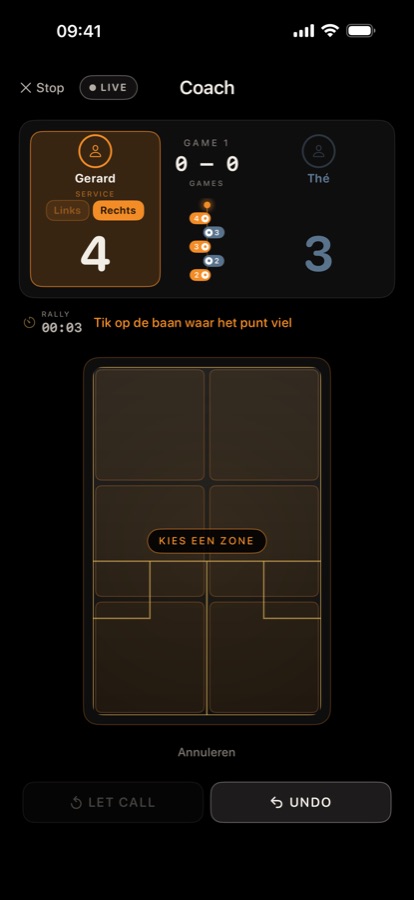
- Tap the court where the point ended. By default the court is divided into 6 zones: front, middle and back, left and right. (Prefer 9 zones? See Settings.)
- Choose the shot. You only see shots that fit that zone: at the front Drop, Boast and Kill; in the middle Kill, Drive, Cross and Boast; at the back Drive, Cross and Lob. Was it a volley? Then switch on Volley first.
For a stroke you only choose the zone, for an unforced error only the type of error; a service point counts straight away. Every step has a Cancel button.
The scoreboard shows who is serving and from which box (Left/Right). If the box is wrong, tap the other one. Between the players runs a score line with the latest rallies, and to the left of the instruction is the rally timer.
Let, undo and the last point
- Let call: choose who asks for the let. The app counts the lets per game.
- Undo: undoes the last point.
- Edit names: is a name wrong, or does it still say Player 1? Tap the pencil on the right under the scoreboard. The score and the points entered stay as they are and anyone watching live sees the new names at once. A player you picked with Choose player stays linked (badges, profile, focus areas) only as long as the name stays the same.
- At the bottom you see the last point entered, for example Gerard: Winner · Volley drop · Front Left.
Game over
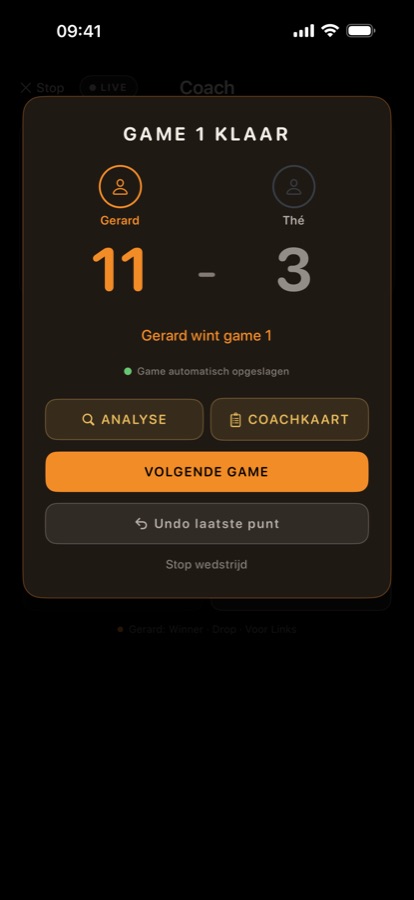
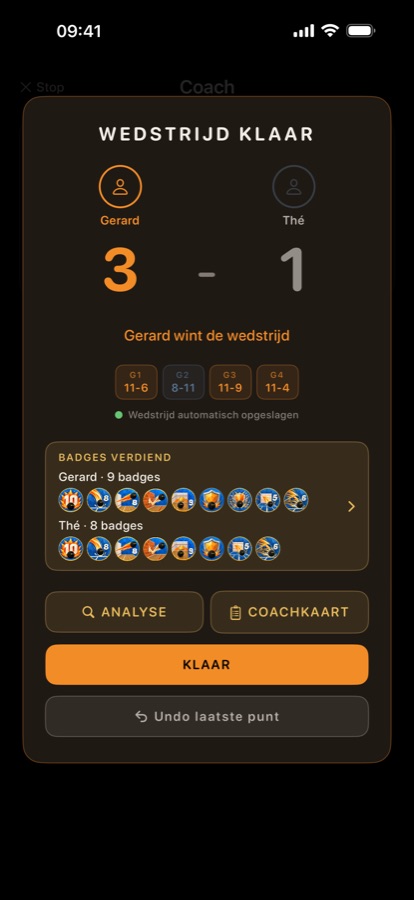
At the end of a game you see the result with Analysis, Coach card and Share score (only if there is something to share), and below that Next game, Undo last point and Stop match. After the last game you also see which badges were earned, and you start the next one with New match.
Share score: choose Scorecard (table), Report (per game, with times) or Image (the result as a picture, with the player photos) and tap Share.
Live sharing
Tap LIVE at the top and share the link, for example in the group chat. Anyone who opens the link follows the score in the browser, with a small photo of the players. LIVE is grey until there is a link and red while you are live. Tap it again to share the link again or to Stop live. The live data is deleted from the server 2 hours after the last score update. A page that is already open may still show the last score it received. If you are scoring yourself, your own match is also shown on your lock screen and in the Dynamic Island (even without LIVE); you switch that off with Score on lock screen in Settings. You switch off LIVE (or just the photos) in Settings. Anyone who has the app taps Follow on your lock screen on the live page and gets the score on their lock screen (see Follow a match). At the bottom of the live page (and at the bottom of this website) you choose Light, Dark or System (follows your phone) under Appearance; the default is dark, and your choice is only stored in your own browser.
Analysis
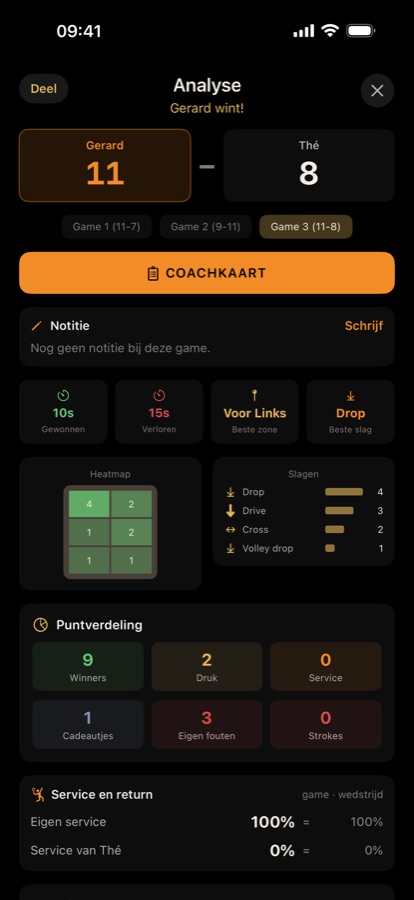
After a game, tap Analysis (the magnifying glass). During a match, from game 2 onwards, the magnifying glass at the top opens the analysis of the previous game. At the top you choose the player and, if there are more games, the game.
The analysis shows, per player and per game: average rally length when winning and losing, best zone and shot, a heatmap of the court, the most used shots (a volley is listed separately, such as Volley drop), the point breakdown, Serve and return, the number of points on the volley and tactical advice. Share sends a summary.
Serve and return: what percentage of rallies the player won on their own serve and on the opponent's, in this game and over the match up to and including this game. From game 2 onwards a small arrow shows whether it went up or down compared with the previous game.
At the top of the tactical advice is Where the points fall: per row (front, middle, back) and side (left, right), how many points the player won, lost and gave away. The advice is based on this: at most 5 lines, starting with what can gain the most points. If the same thing also happened in an earlier game, it says, for example, Just like in game 1.
If you have set an OpenAI key, Ask AI Coach for advice gives a detailed analysis with strengths, points to work on and a focus for the next game. No names are sent, only numbers. The app picks an available model from a preference list of affordable models. Without a key you do not see this section.
Note per game
The analysis has a Note section. Tap Write (or Edit if there is already something there), type or dictate with your keyboard's microphone what you noticed, and tap Save. You can also do this afterwards. The note is just for you: it appears in the analysis and on the coach card, not in what you share, and it is included in the backup.
Coach card
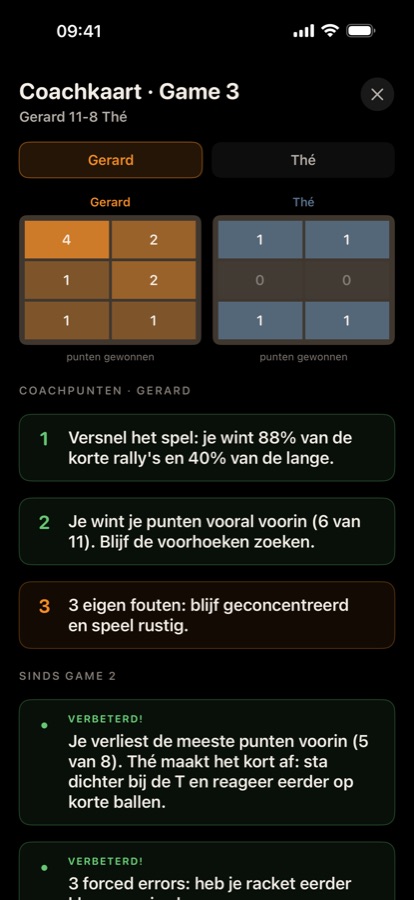
The coach card (the clipboard) is a single screen to show your player between games. You open it after a game with Coach card, or at the top of the analysis. On the card:
- the heatmap of both players: where they won their points;
- the 3 most important coaching points of the game;
- your note for that game, if you wrote one;
- from game 2 onwards, what changed since the previous game: Still there (a point to work on comes back), Improved! (a point to work on has gone or halved) or Pick this up like you did in game 1 (something went well earlier and not now).
The card opens on the player from your team (under Players they are set to In my team); if there are two or none, on the first one named; at the top you switch player. Also for matches you coached earlier: Finished matches → View analysis → Coach card.
Stopping and resuming
- Tap Stop. If the match is over, it is saved. If nothing has been played yet, it disappears. Otherwise you choose: Save and continue later, Save as incomplete, Complete result (enter who won the remaining games; after that you start a new match), Don't save or Keep playing.
- If you tap the Coach tile while a match is still in progress, the app asks Resume match?: Resume, New match (the old one goes to Finished matches as incomplete) or Cancel.
Finished matches
Look back, share and keep everything
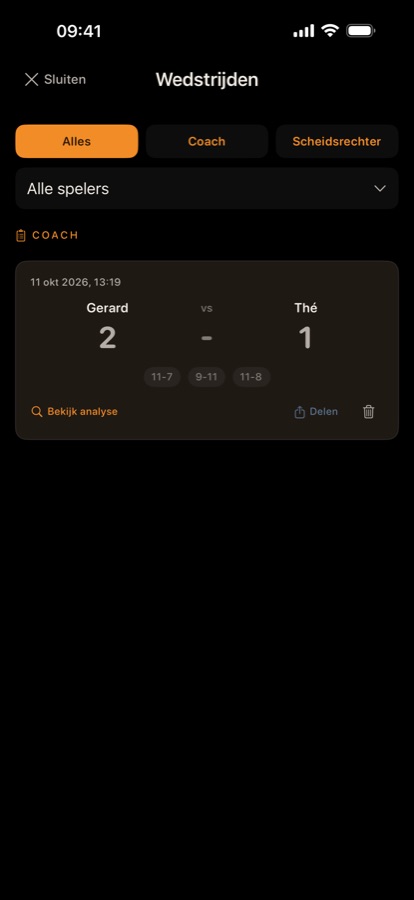
- Filter on All, Referee or Coach, and on a single player via All players.
- A coach match shows the score per game. Tap the card or View analysis for the analysis, which includes the Coach card and the note per game. Share offers Scorecard, Report or Image; the bin deletes.
- Not finished? Then it is marked INCOMPLETE and you can use Complete result to enter who won the remaining games.
- Referee matches show the result per game; you can share and delete from the card.
- A match still in progress is not listed here: the Referee or Coach tile offers it to you.
You make and restore backups in Settings.
League
Team matches in the SBN league, new in version 3.0
A team match in the SBN league consists of four matches (E1 to E4). Tap New team match and choose a match from the My team fixtures, or enter the teams, home or away and the date yourself. The Share with my team switch is on by default: the app then creates a live page right away and opens the share screen. With it off (or without internet) the team match stays on your phone only; you can still share it later.
Every team match has a label: SHARED (with your team, there is a live page) or PRIVATE (on this phone only).
- Filling in a match: tap E1 to E4. Choose our player (the My team squad is ready as buttons), type the opponent and add the games with the score (for example 11-8), or just We won / They won if you no longer remember the score.
- Scoring or linking: if you want to score the match now, choose Coach or Referee under Start new match: the names are already filled in (the home player is Player 1) and the result goes into the match automatically afterwards. Already scored the match? Tap Link a previously scored match, pick it from Finished matches and say who our player was. The games then come along automatically; Refresh fetches them again if you complete the result later.
- On match day: after a referee or coach match, the app asks whether it belongs to today's team match and to which match.
- Score and result: the app counts the games, the matches and the rally points, and decides the winner according to the SBN rules (most matches; if tied: the team with a full line-up; then the most games; then the most rally points; then whoever won E1). League points are the games plus 3 bonus points for the winner, unless a team without a full line-up wins. Did a player retire or not turn up? Choose that in the match: if a player retires, all remaining points go to the opponent; if a player does not turn up, the other wins 11-0 three times.
- Share report: choose Scorecard, Report or Image, just like for a match, and share the result with all matches in the group chat. Below the score, the image shows per match who played whom and the games.
- Sharing with team and supporters: if the team match has not been shared yet, tap Share with my team at the bottom. After that, Share with team and supporters opens the share screen with two groups: For supporters (Share viewer link: view only, in the browser, with the score of the whole evening and the games per match, point by point too) and For team members (Invite team members: a link and code to join). Only team names, first names and the score are sent; without names filled in, it shows the team name followed by the match (for example Delft 7 E1). Two hours after the last update, the live team match data is deleted from the server. Supporters with the app tap Follow on your lock screen on the viewer page and follow the whole team evening on their lock screen (see Follow a match). With Send the players' photos along on, small photos of both players are sent for each match. Whoever started the live page can end it with Stop live; a teammate sees Leave live.
- Joining as a teammate: open the invitation (or tap Join with link or code in League), choose which team is yours and add a match. The app updates the chosen match; Refresh fetches the others' matches. If you already created the same evening yourself, the live page is added to your own team match; if you had already filled in matches there, choose Take over my teammate's matches or Cancel. Agree among yourselves who scores which match.
- With a new match: if you start a referee or coach match that belongs to a team match, switch on Part of a team match and choose the match and who our player is. If the team match is shared, the score of that match goes to the team page point by point.
- In my team: under Players, switch on In my team for a player. Those players appear at the top when you fill in a match. With a team link in My team, the players in your team appear in the list automatically with this tick. Team matches and this choice are also included in the backup.
Follow a match
Live score on your lock screen, new in version 3.0
Can't be there? Then put a live match on your lock screen. The score updates after every rally, even when the app is closed.
- Open the live link shared in the group (a single match or a team match from League) and tap Follow on your lock screen on the live page. The app opens and puts the match on your lock screen straight away.
- Or: tap Follow a match on the home screen, paste the live link and tap Follow.
Under On your lock screen you see which matches you are following.
What you see
On the lock screen the players are on the left and right, with a photo or initial and the name underneath; a dot on the photo shows who is serving. In the middle the score of the current game is shown large, with LIVE above it and, for example, GAME 3 · BEST OF 5 (or GAME BALL, MATCH BALL, BREAK), and the games won below it. The bar at the bottom shows SquashAnalyzer, the games played in the winner's colour and the playing time. Afterwards it says FINISHED and who won, and the result stays up for a while. In the Dynamic Island (on iPhones that have one) you see the score in short.
Team match: E1 to E4 each on their own line, with photo or initial, first name, the games and, in the middle, the score of a match in progress, done or –. The bar at the bottom shows the team names with the games per team and LIVE. A match or photo that arrives later while the app is closed is shown with the initial first; open the app briefly and the photos come through.
Notifications for a game and the result
When a game is finished, you get a notification with sound, for example Game 2 to Thomas, and at the end a notification with the result. For a team match you get a notification for each decided match and for the final result. Never per rally. The notification also appears on your Apple Watch, just like a goal in a football app, as long as the watch is unlocked on your wrist. You don't hear a sound if your iPhone is on silent or a Focus is on. Prefer just the score? Switch off Notify every game in Settings.
Your own match
If you are scoring yourself (Referee or Coach), the score of your own match is also shown on your lock screen and in the Dynamic Island, with the match time. This works without internet and without LIVE. After the match the result stays up for half an hour. To switch it off: Score on lock screen in Settings.
Stopping
Swipe the score away on your lock screen, or tap Stop next to the match in Follow a match. When the match is over, it stops by itself.
Photos are only shown if the scorer has Send the players' photos along switched on. To send the score, the live server stores a code from your phone (a push token) with the match, temporarily and in the EU; it is deleted together with the match, 2 hours after the last score. More in the privacy policy.
Players
Your regular players, with photo, focus points and badges
Adding and editing players
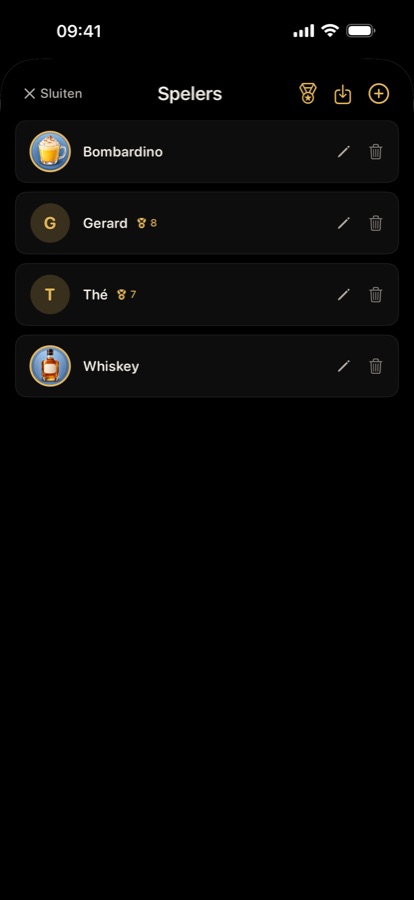
- The app starts with two example players, Bob and Wim, so you can try it straight away. Feel free to delete them; they won't come back.
- Tap + for a new player: name, photo, coaching focus (such as Backhand or Fitness) and notes.
- The pencil edits, the bin deletes. Matches played are kept.
- Tap a player to see that player's badges.
Importing a whole team
Tap the import icon and choose:
- Via link: paste the team link you received (https://squashanalyzer.com/teams/…) and tap Import.
- From file (zip): choose a team zip from the Files app.
Players with the same name are updated, new ones are added.
Sharing a player card
Open a player's badges and tap Share card. You share an image with a link. Anyone who opens the link sees the card in the app (iPhone or Android) or in the browser and can link it to one of their own players. Only share a card with the player's permission.
Profile: how the matches are going
Open a player's badges and tap Profile at the top. You see the number of matches and the win percentage, the form (the last ten results), winners and unforced errors per game as a line across the matches (from four coach matches, with "from … to …"), the shots the player scores with most often and the most frequent error, the court (where points are won and lost), the pace (average rally length) and the opponents with the head-to-head record. At the top, choose the last 10, the last 25 or all matches. Only matches in which you chose the player via Choose player count; referee matches only provide the result, the rest comes from coach matches.
Badges
All 37 badges and how to earn them
You earn badges automatically during matches, but only with players you chose via Choose player. The list is divided into In one game, In one match and Across all your matches. The label COACH means the badge can only be earned in coach mode; ONCE means you only get it once.
Seventeen badges have a bronze, silver and gold tier. For a player you see the highest tier reached and how often and when the badge was earned. You delete an earned moment by swiping left.
A fresh start at release
With the release of version 3.0, everyone starts again with badges. Badges from the test period are not erased, but they no longer count and are no longer shown with the players; matches from before then no longer give badges. Anyone who had badges in the test period gets the Pioneer badge, listed under Special. Pioneer does not count towards the total of 37.
The first time you open the app after that, it asks whether you want to clear up the matches from the test period, with a switch per group: matches with the old example players Bombardino or Whiskey, incomplete and paused matches, and league matches. A full backup is made first. If you choose Keep everything, everything stays in the history and the analysis. The question only comes once, and only if there is something to clear up.
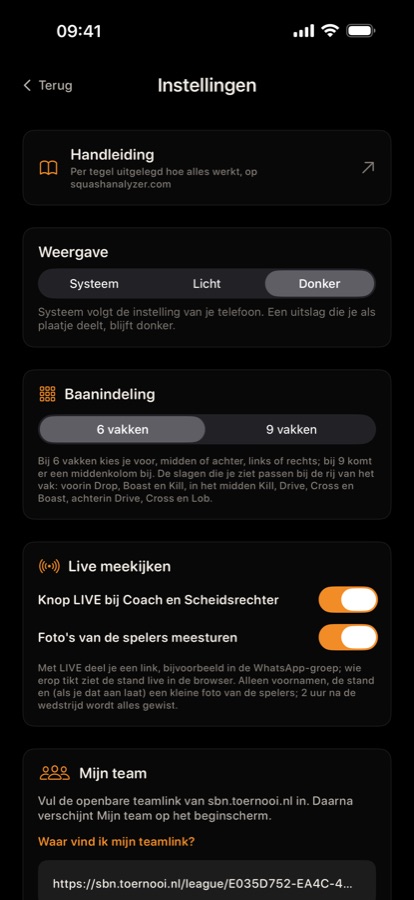
Settings
The gear at the top right of the home screen or the coach screen
- User guide: opens this page.
- Language: Phone (Dutch when your iPhone is set to Dutch, English otherwise), Nederlands or English. The choice applies straight away to the whole app, the live score on the lock screen and the notifications (see Language below).
- Appearance: System (follows your phone), Light or Dark (default). The choice applies to the whole app straight away; a result you share as an image stays dark, as does the app icon.
- Court layout: choose 6 zones (default) or 9 zones with a middle column.
- My team: paste your team link from sbn.toernooi.nl and tap Save team link; only a valid link is saved. Remove deletes it.
- Live sharing: the LIVE button in Referee and Coach, and Send the players' photos along. Both are on by default. Below them, Score on lock screen (your own match on the lock screen and in the Dynamic Island while scoring) and Notify every game (a notification with sound for a finished game and the result of a match you follow); these are also on by default.
- Backup: Weekly backup to iCloud is on by default. Once a week, when you put the app away after use, a backup is made in iCloud Drive; the 7 most recent are kept. With the buttons below: Back up to iCloud now, Restore (choose Add or Replace all), Share (the backup file to another app) and Import match (a shared match). Backups can also be restored on an Android phone.
- AI Coach: enter your own OpenAI API key and tap Save API key. The key is stored safely in the iPhone keychain. The costs are charged by OpenAI and depend on the chosen model and usage. Saving an empty field deletes the key. If the advice fails, tap Try again.
- About the app: View the tour again (the six intro screens from the first launch), Share the app (a message with the links to the Play Store and the App Store) and Send feedback (an email to info@squashanalyzer.com with the app version).
Language
With Phone the app follows your phone's language: Dutch when your iPhone is set to Dutch, English otherwise (a per-app language set in the iPhone's Settings app counts too). Any other phone language gives English.
To choose a language for the app only, tap Language in the app's Settings and pick Nederlands or English. The change applies at once, also to the live score on the lock screen and the notifications; the Dutch texts stay exactly as they were.
Question, bug or idea? Email info@squashanalyzer.com.